Preparer Notes
The Notes frame provides an organized area to make notes for individual returns or entire jurisdictions. These notes can be added to any return in Stratus and can serve as important reminders.
Adding Return Notes and Field Notes
To add a note, load a form or return. Click the Note icon on the far-right side of your screen to load the preparer note interface. You may type or copy text to the note. The information will automatically be saved and will be available the next time you open that particular return.

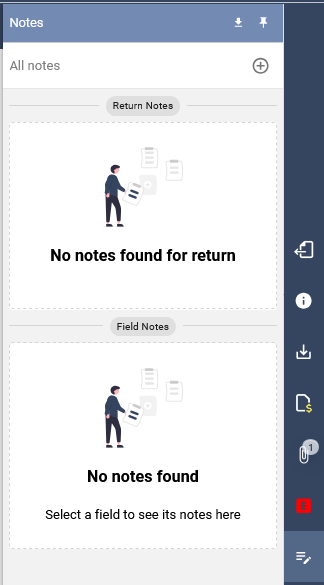
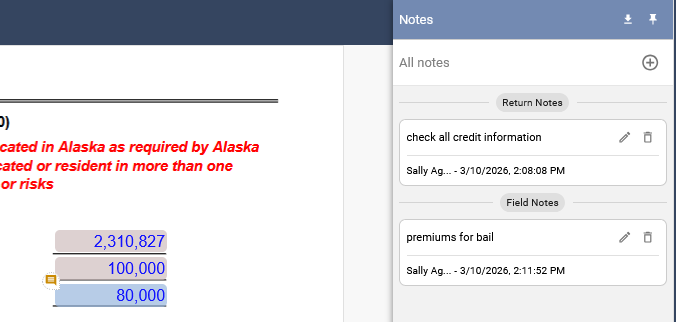
You may enter either General Return Notes or Field Notes. General Notes are displayed in the top portion of the Notes frame, while Field Notes appear in the bottom portion. A Field Note is associated with a specific field on the return.
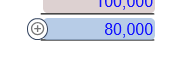
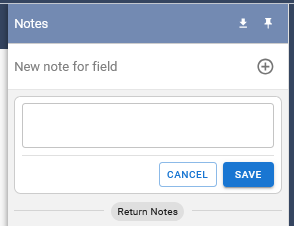
To add a Field Note, hover over the field where you would like to add the note and click the white circle with the plus sign. A Field Note window will open where you can enter your note. Click Save to store the note.
After saving, a yellow flag will appear next to the field indicating that a note has been added. In the Notes frame, selecting a Field Note will move your cursor directly to the associated field on the return.
You can pin the Notes frame by clicking the pin icon located in the top right-hand corner of the frame. Pinning the frame will keep the Notes panel open while you continue working within the return.
Related Articles